This brief tutorial demonstrates how a hex editor, wxHexEditor, allows users to explore and understand the underlying structure of files at the byte level, including magic numbers, headers, offsets, and section information. We use three simple and safe examples: a Linux kernel ELF file, a Windows executable (PE), and a JPEG image. These examples illustrate how different file types store metadata and structural information, enabling analysts to identify key signatures and offsets for further examination. Understanding these fundamentals is critical in malware analysis, digital forensics, and data recovery, as it allows professionals to carve specific data segments, verify integrity, and extract meaningful information without risking file corruption. Using wxHexEditor to examine multiple file types gives readers a practical foundation in how files are organized internally, helping them build skills necessary for more advanced tasks such as analyzing complex binaries or investigating embedded content. By inspecting ELF, PE, and JPEG files, users gain insight into the consistent patterns and structures that all digital files share, even across different operating systems or file formats.
Why Hex Editors Matter
Hex editors allow analysts to examine the raw bytes of files, revealing hidden structures and embedded information not visible in standard viewers. Understanding file headers, magic numbers, and offsets can help in malware analysis, forensic investigations, and data recovery. This knowledge is essential for cybersecurity professionals and students preparing for certifications such as CySA+.
Understanding Magic Numbers and File Headers
Most file types start with a unique sequence of bytes known as a magic number. This helps software identify the file type regardless of its extension. For example:
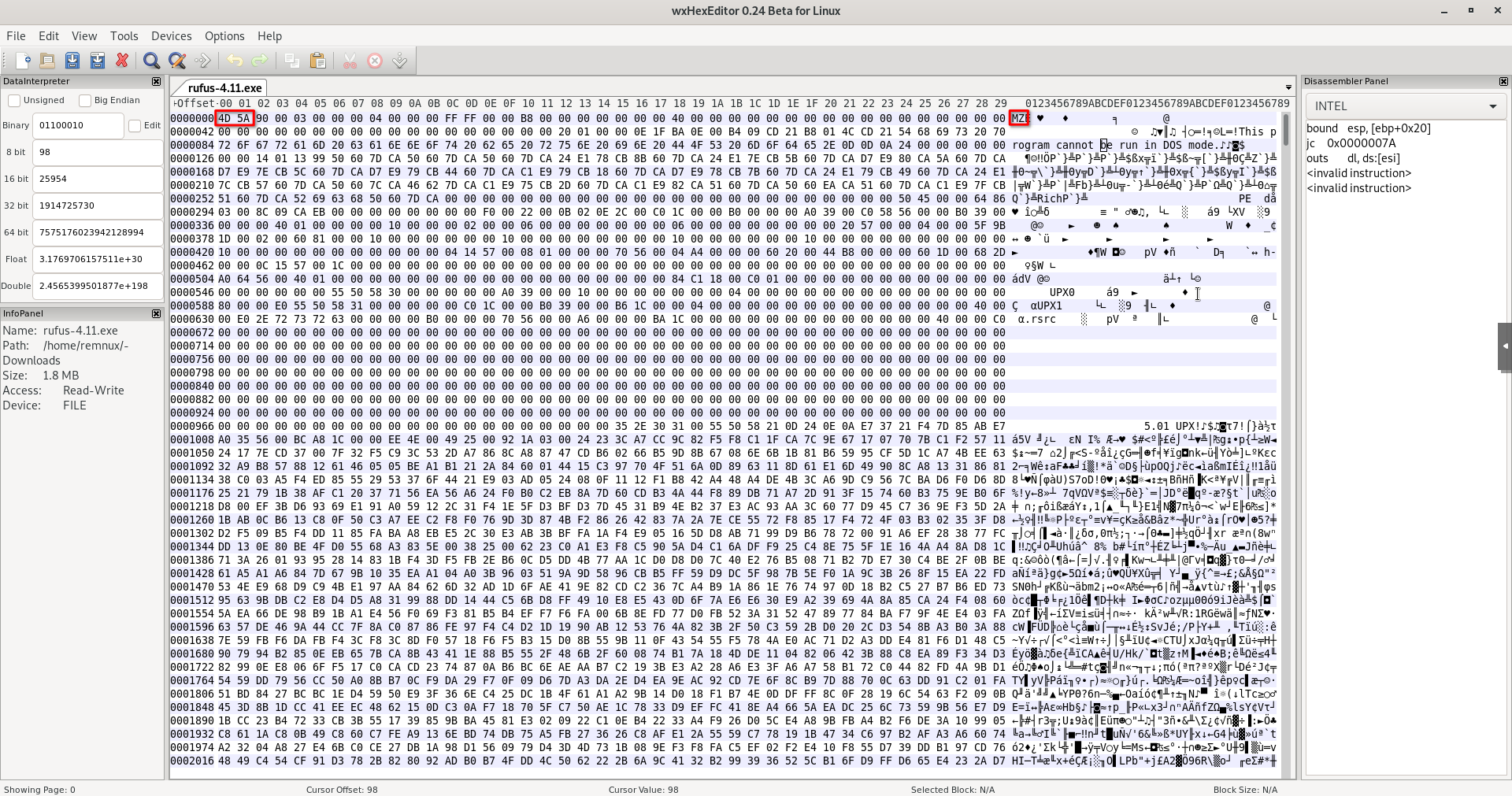
PE files start with 4D 5A which corresponds to MZ
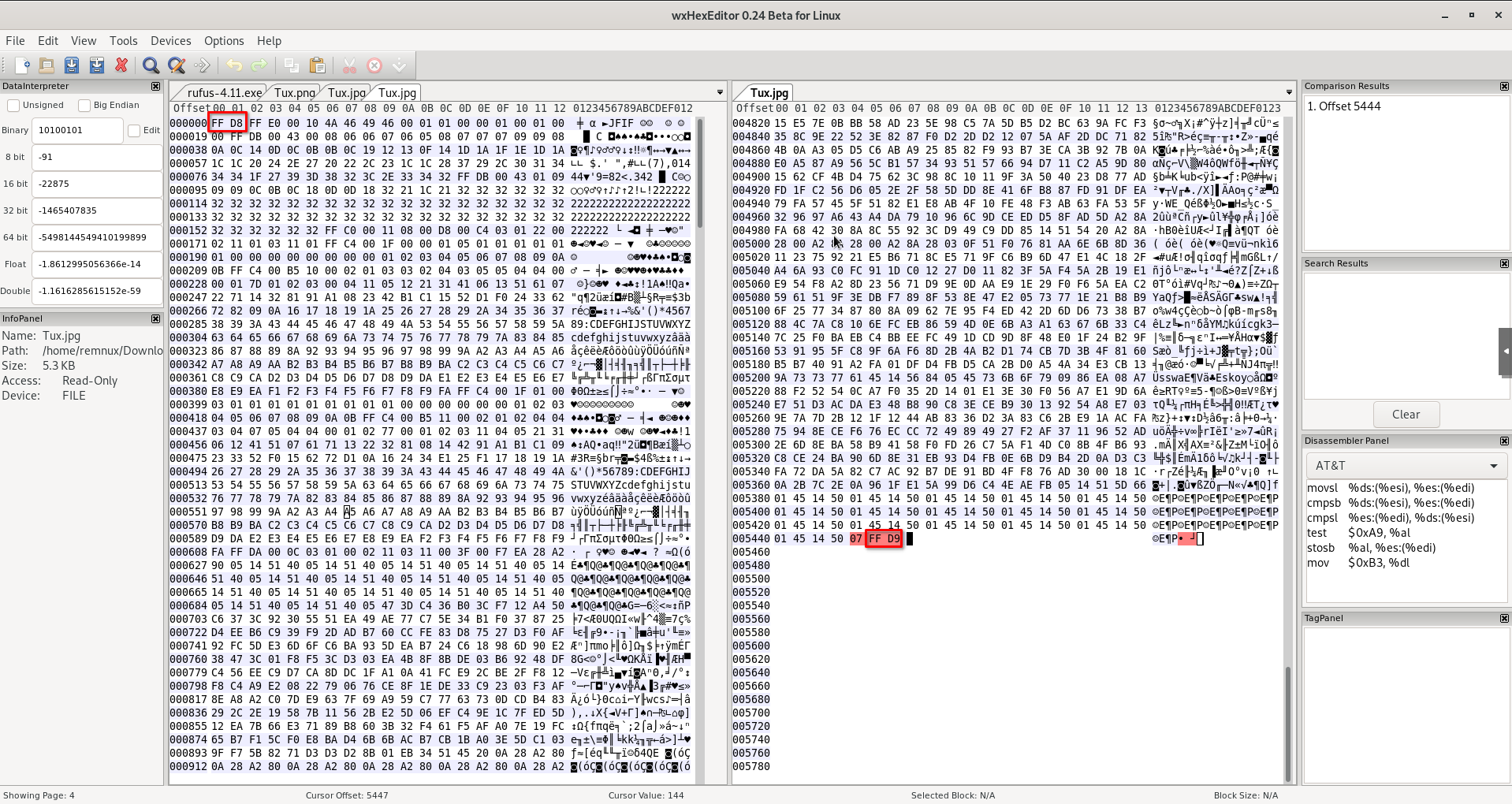
JPEG images start with FF D8 FF
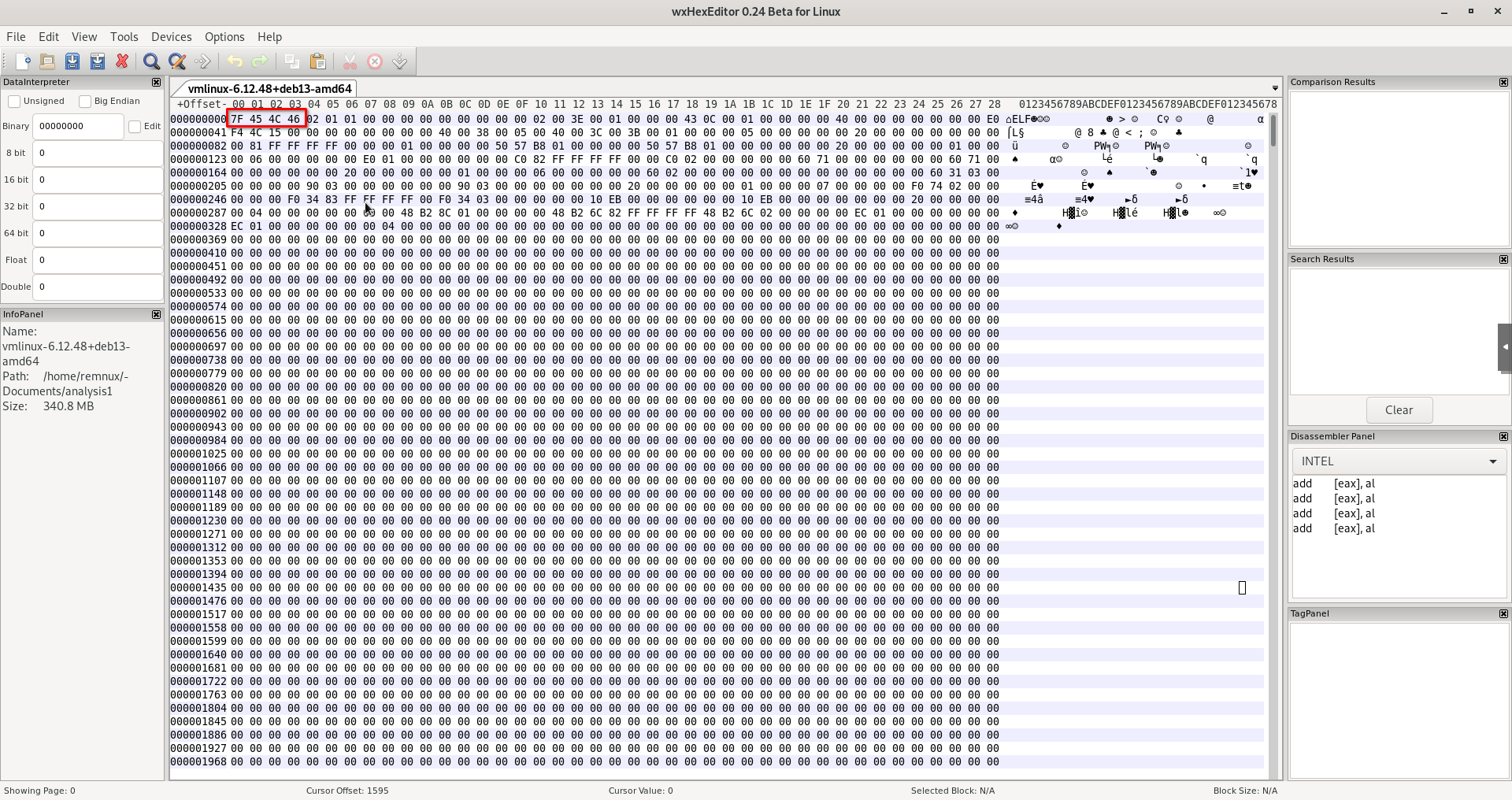
Linux ELF files start with 7F 45 4C 46 which corresponds to .ELF
Headers contain metadata such as file size, section offsets, and format information. Examining headers is the first step in analyzing or carving files with a hex editor.
First bytes of the Linux 6.12.48 kernel ELF file displayed in hex.
Example 1: PE File Analysis
Windows PE files have a standard structure starting with the MZ signature. Using wxHexEditor, we can see:
The MZ signature in the first two bytes
The offset to the PE header stored at byte 0x3C
Other sections such as .text, .data, and resources
We can safely make a small edit on a copy of the file, for example changing a non-critical byte, to see how the offset or header appears in the hex view.
Viewing the PE headers and MZ signature with wxHexEditor.
Example 2: JPEG File Analysis
JPEG images contain a Start of Image marker FF D8 and an End of Image marker FF D9. Using wxHexEditor, we can examine:
Magic numbers
Metadata sections such as EXIF
Embedded thumbnails or other data blocks
Using this view, analysts can carve embedded data or identify sections for extraction without altering the original file.
JPEG file structure, as seen in wxHexEditor - starts with FF D8 and ends with FF D9.
Carving and Extracting Data Using dd
Once offsets are known, you can extract specific portions of a file using the Unix utility dd, which lets us carve out exact byte ranges based on position. This is especially useful in forensics, reverse engineering, or when we want to analyze individual sections without opening the entire file. For example, to extract the first 512 bytes of a PE file, which includes the MZ header, DOS stub, and the pointer to the PE header, we can run:
dd if=example.exe of=header.bin bs=1 count=512
This creates a separate file containing only the header for analysis. Similar carving can be done for embedded images or sections in JPEG files.
Extracting bytes from a file with dd for analysis.
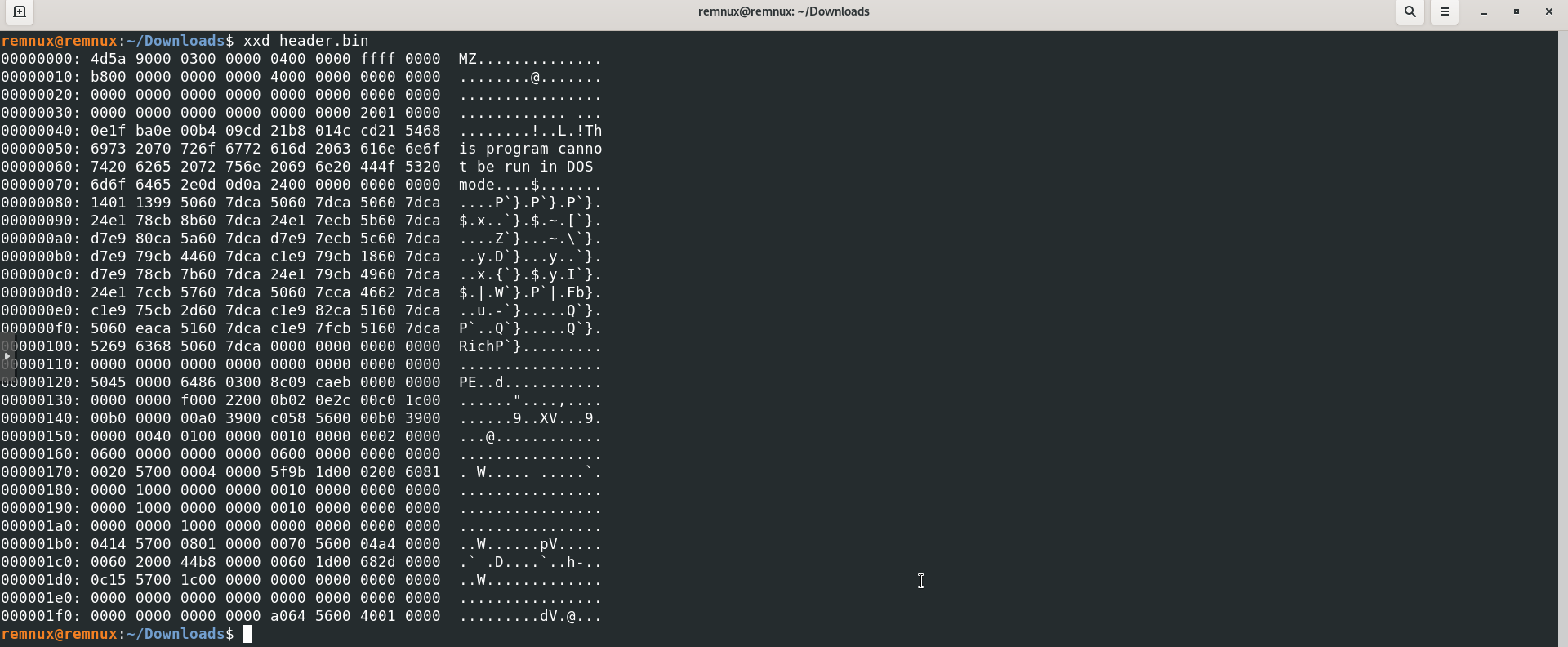
Hex dump using xxd of the first 512 bytes of a Windows EXE file.
xxd is a simple tool to visualize binary data in hexadecimal, making it easy to identify structures like the DOS header (MZ signature) and the beginning of the PE header.
Key Takeaways
Hex editors reveal file structure, headers, and magic numbers.
Working on file copies ensures safe exploration without corruption.
PE files and JPEGs have distinct signatures that can be used to locate sections and extract data.
Combining wxHexEditor with dd allows safe carving and forensic analysis.
Conclusion
Hex editors like wxHexEditor are essential tools for analyzing file structures and understanding how different file types are organized. By exploring magic numbers, headers, and offsets, analysts can safely carve data, investigate embedded content, and gain practical skills in malware analysis, digital forensics, and cybersecurity. Practicing with PE and JPEG files gives a solid foundation for further analysis of more complex or malicious files.