Firejail is a powerful security tool used to isolate applications on Linux using lightweight sandboxing techniques. It helps limit what programs can access, including the filesystem, network, devices and user data. Firejail is extremely helpful for security analysts because it allows testing of unknown or untrusted files without risking the host system. It is also valuable for day to day privacy by restricting what normal desktop applications can reach. For CySA+ candidates, learning Firejail demonstrates clear knowledge of defensive controls and secure testing procedures.
This article explains how Firejail works, how to use it to sandbox applications and how to apply profiles to strengthen isolation. It also includes practical demonstrations and safe tests that can be performed on any Linux system such as Kali, Debian or Remnux. The goal is to provide analysts with a simple and reliable workflow for handling suspicious software in a controlled environment. Screenshots used in this guide reflect realistic examples of running programs within Firejail and will help document your own security notes or portfolio content.
Installing Firejail
Firejail is available in the default repositories of most Linux distributions. Installing it on Debian based systems such as Kali or Ubuntu only requires the following commands:
sudo apt update
sudo apt install firejail -y
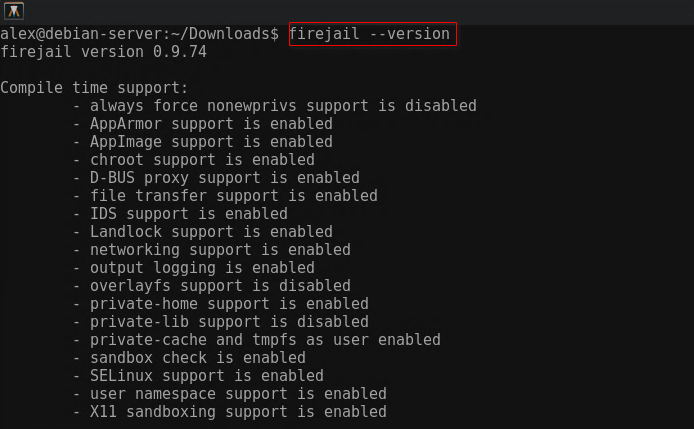
After installation, Firejail can be used immediately without additional configuration. To verify everything is working, run:
firejail --version
You should see version details and confirmation that the sandbox engine is functioning. Firejail installs several default profiles for common applications such as web browsers and communication tools. These profiles define what the application is allowed to access and help enforce a secure baseline without requiring manual creation of policy files.
Verifying that Firejail is installed correctly and ready for use.
Running Applications in a Sandbox
One of the simplest ways to use Firejail is to launch a program directly within a sandbox. This is ideal for opening suspicious files, testing unknown software or browsing untrusted websites. A common example is running Firefox in a Firejail sandbox:
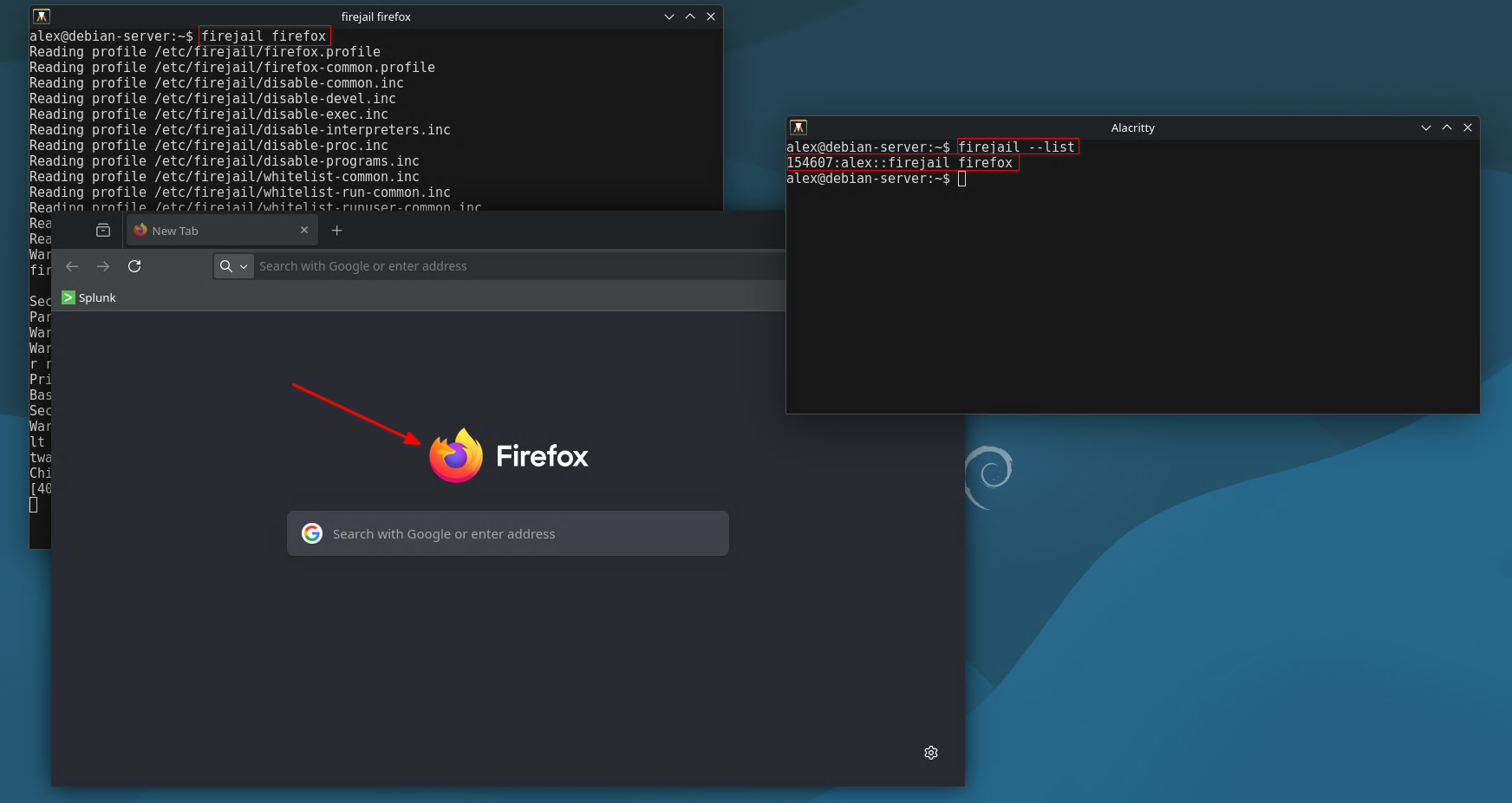
firejail firefox
When launched this way, Firefox can only access a limited portion of the filesystem. It cannot read private directories, modify sensitive files or interact with system configuration. Firejail also applies network filtering, process isolation and optional seccomp restrictions to prevent system calls that could be harmful.
To see the sandbox boundaries that Firejail enforces, run:
firejail --list
This displays all sandboxed programs currently running. It allows analysts to verify that an application is properly contained during testing. When dealing with suspicious software, this step provides added confidence that potentially harmful actions stay inside the sandbox.
Launching Firefox inside a Firejail sandbox for safe web browsing and file testing.
Using Firejail Profiles for Stronger Isolation
Firejail uses profile files to define what an application is permitted to do. A profile can restrict access to directories, block network communication, disable file downloads, prevent execution of child processes and more. To check which profiles are available on your system, run:
ls /etc/firejail
For example, Firefox has a dedicated profile named firefox.profile. When you start Firefox normally using the firejail command, this profile is applied automatically. The profile prohibits access to sensitive directories such as the home folder outside of the browser configuration path. It also prevents execution of external commands which limits the damage if a malicious script runs in the browser.
To test a custom application or unknown executable you can launch it with a generic strict profile:
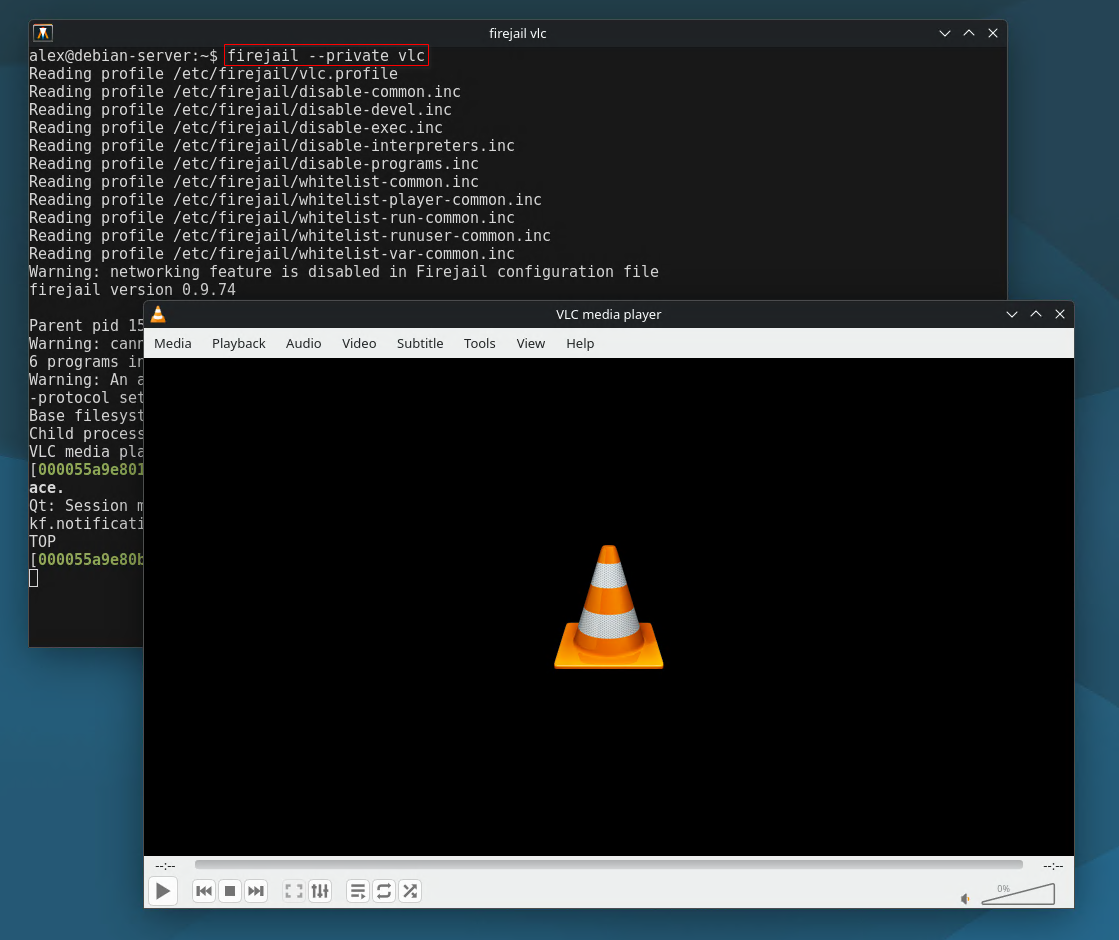
firejail --private=testfolder unknownapp
This creates an isolated private home directory that only exists inside the sandbox. Anything the application writes stays inside that environment and is removed when the session ends unless saved manually. This is perfect for controlled malware analysis where the analyst wants to observe behavior without risking the real system. Even if the program attempts to create files, modify configurations or interact with user data, Firejail blocks the action or confines it to the temporary private directory.
Testing an application (VLC) using Firejail private mode to isolate all filesystem activity.
Why Firejail Matters for CySA+ and Security Analysts
Firejail is a practical tool for risk reduction in both home labs and professional environments. Analysts often need to interact with suspicious files such as unknown scripts, application binaries, browser extensions or web pages. Instead of trusting these items on the main system, Firejail provides a simple way to create a secure boundary. It is significantly lighter than full virtual machines and easier to deploy when quick testing is required.
For CySA+ candidates, Firejail demonstrates knowledge of host based security controls, file isolation and safe handling procedures. Being able to explain how to contain potentially harmful behavior is directly relevant to incident response objectives. In real investigations, analysts often isolate compromised applications to examine behavior or preserve evidence. Understanding Firejail prepares you for these tasks by providing hands on experience with Linux sandboxing.
Regular practice with Firejail also improves system hygiene. Sensitive applications such as browsers benefit from isolation even during normal use because it limits data exposure and can prevent certain attack techniques. By mastering Firejail, analysts gain a powerful tool for daily defense as well as controlled experimentation with unknown software.